
Setup Microsoft Authenticator
- using only a phoneIt is recommended that you use 2 devices as outlined at it.usu.edu/mfa where possible to setup your Microsoft Authenticator. This is due to it being a far more straightforward method. If however you don't have access to a computer and only have your Authenticator App this article will show you how to setup your authenticator app.
- On your phone's web browser visit the servicenow opt in form.
- Press"Opt in"
- Download the Microsoft Authenticator App using your app store
- Open the App on your phone and log in
- Make sure to allow notifications from the app
- Using a web browser Link your USU account to the App
- Visit aka.ms/mfasetup
- Log in using A#@aggies.usu.edu
- Select Next until you reach "Set up your account in the app"
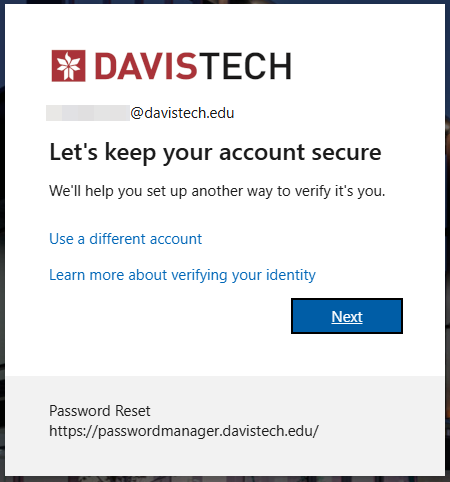
- Press "Pair your account to the app by clicking this link"
- The Microsoft App may pop back up
- Swap apps back to the web browser and select "Next"
- A two digit number will appear
- Swap back to the Microsoft Authenticator App
- Type in the two digit number and press "Yes"
- Swap back to the web browser
- It should now say "Notification Approved"
- Press"Next" and then "Done"
You should now have the app enabled and setup on your phone for future authentication purposes.