
Mobile Verification Code
Mobile Verification Code
When logging in to a service, you'll need to open the app and look at a 6-digit code that is displayed in the app. This option is a good choice when there is no access to cellular data or WIFI, and you need to log into a service (ex: airplanes).
How to use this option when a push notification won't work:
- Log into the service with your Anumber@aggies.usu.edu and USU password
- When you are prompted to approve the sign-in request, click the link that says, 'I can't use my Microsoft Authenticator app right now'
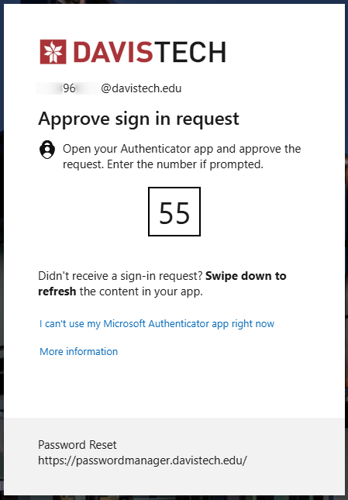
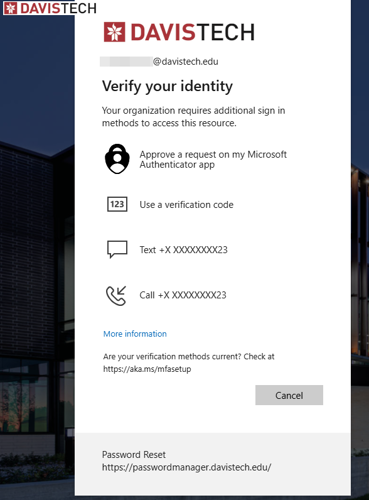
- Click Use a verification code
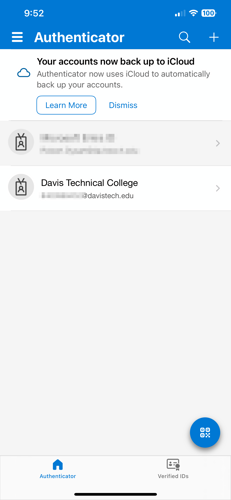
- Open the Microsoft Authenticator app on your phone
- Tap to open your USU account
- A one-time passcode will be provided. Note: This passcode refreshes every 30 seconds
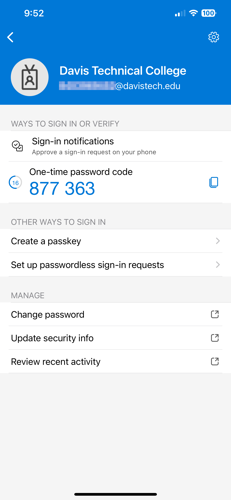
- Enter this code into your web browser to approve the log in.
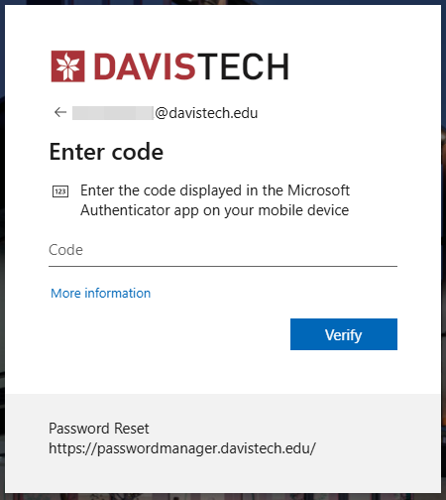
If you prefer to enter a code instead of a push notification change the default method using the following:
The Mobile verification code is added by default after you add the authenticator app as an option for verification. You'll just need to set it as the "Default sign-in method"
- Select "Change" under Default sign-in method
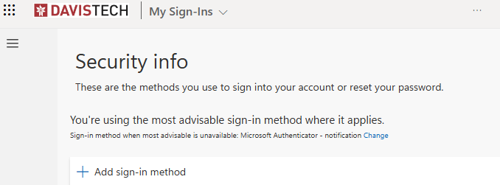
- Under Default sign-in method: select "App based authentication or hardware token - code"