
Mobile Notification push
When logging into a service, a notification with 2 digits will be pushed to your mobile device for authentication. This is a good option for regular day-to-day usage where a cell phone can be used.
To set-up Mobile Notification:
- Select +Add sign in method
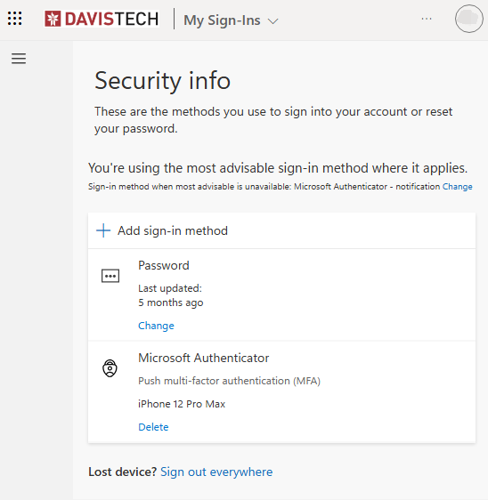
- Choose "Authenticator app" as your method and click "Add"
- In the next two boxes, click "Next" (you may ignore the specific instructions in the box), a QR code will appear
- Open the Microsoft Authenticator app installed on your phone/device and select the + button in the top right corner
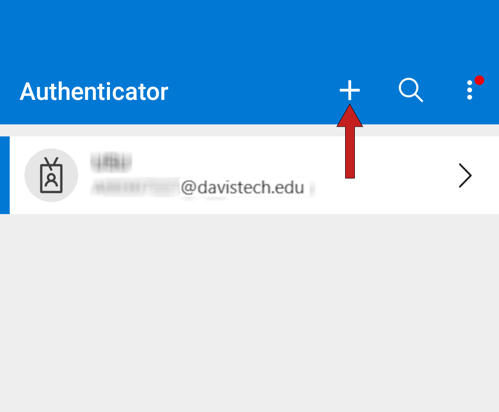
- Select 'Work or school account'
- Select 'Scan a QR code' and scan the code
- Back on your desktop or laptop, click 'Next'
- Test your authenticator
If you'd like to setup the authenticator app notification as the default follow these steps:
- At the top of the page select 'Change' under the Default sign-in Method section.
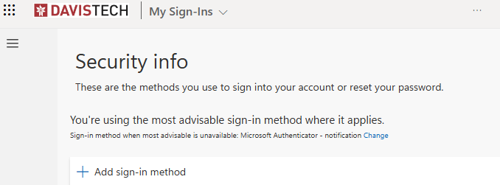
- In the drop down menu select 'App Based authentication - notification'